Learning Objectives
By the end of this chapter, you will be able to:
- Identify the motherboard as the main circuit board of a computer.
- Describe the purpose of the CPU socket and RAM slots.
- Explain the function of expansion slots and the types of cards they hold.
- Understand the role of the chipset in managing data flow.
- Identify other components inside the cabinet: PSU, cooling, storage, BIOS/UEFI, and CMOS battery.
- Apply this knowledge to choosing or upgrading a computer.
Inside a Computer Cabinet: The Motherboard
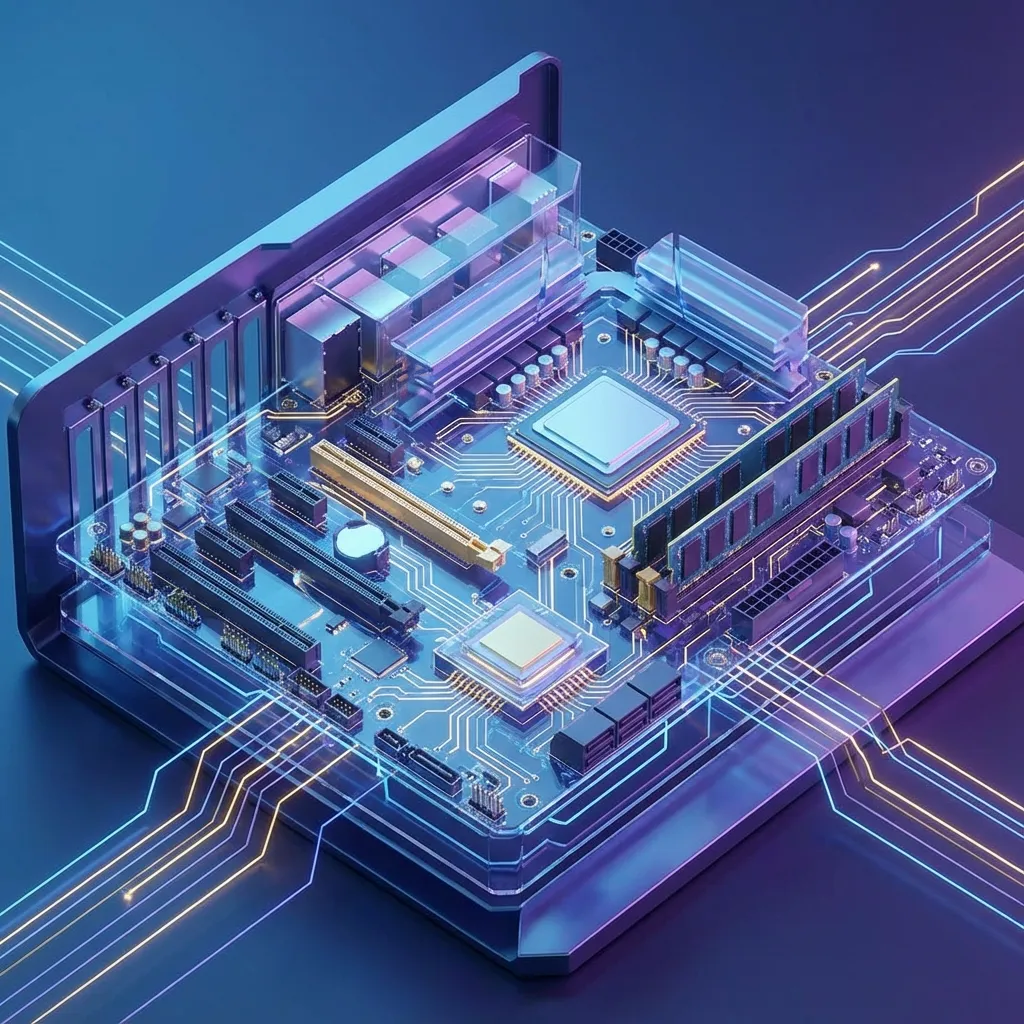
When you open a computer case, the most prominent component you will see is the motherboard. The motherboard is the main printed circuit board (PCB) in a computer and it holds and connects all of the most crucial components of the system.
Key Components on the Motherboard
-
CPU Socket: This is where the Central Processing Unit (CPU), the brain of the computer, is installed. The type of socket determines which type of CPU the motherboard can support.
-
RAM Slots: These slots are for installing the computer’s Random Access Memory (RAM). RAM is the primary, volatile memory that the CPU uses to hold the data and instructions it is actively working on.
- Expansion Slots: These are used to install expansion cards that add new capabilities to the computer. Common types of expansion slots include:
- PCI Express (PCIe): The modern standard used for high-speed components like graphics cards, sound cards, and network cards.
- Storage Drive Connectors: These are ports for connecting storage devices like Hard Disk Drives (HDDs) and Solid-State Drives (SSDs). The most common type is SATA (Serial ATA).
- M.2 slots hold small, very fast NVMe SSDs directly on the motherboard without cables.
-
Chipset: The chipset is a collection of microchips on the motherboard that manages the flow of data between the CPU, RAM, and other peripherals. It acts as the traffic controller of the motherboard.
-
Power Connectors: These connectors deliver power from the computer’s power supply unit (PSU) to the motherboard and its components.
-
BIOS/UEFI chip: Firmware that runs when the computer is switched on. It performs the POST (Power-On Self-Test) to check hardware, then loads the operating system from storage.
-
CMOS battery: A small coin battery that keeps BIOS settings and the system clock when the computer is unplugged. A computer that keeps losing its date and time often needs a new CMOS battery.
- Back-panel I/O ports: USB, HDMI, Ethernet, and audio ports built into the motherboard.
Other components inside the cabinet
| Component | Function |
|---|---|
| Power Supply Unit (PSU) | Converts AC mains power into the DC voltages the components need |
| CPU cooler (heat sink and fan) | Removes heat from the CPU to prevent overheating |
| Case fans | Move air through the cabinet |
| Graphics card (GPU) | Processes images and video; essential for gaming, design, and AI |
| Storage drives | HDD or SSD for long-term storage |
| Optical drive (older PCs) | Reads CDs and DVDs |
flowchart TB
  PSU[Power supply] --> MB[Motherboard]
  MB --> CPU[CPU in socket]
  MB --> RAM[RAM in slots]
  MB --> GPU[Graphics card in PCIe slot]
  MB --> SSD[SSD via M.2 or SATA]
  MB --> IO[Back-panel ports]
Form factors
Motherboards come in standard sizes called form factors, such as ATX (full size, many slots), Micro-ATX (smaller, fewer slots), and Mini-ITX (very compact). The cabinet must match the motherboard’s form factor. Laptops use custom compact motherboards where RAM and storage are sometimes soldered and cannot be upgraded.
Practical Example: Upgrading an Office PC
A travel agency’s desktop is slow when staff use the booking system, email, and many browser tabs. A technician opens the cabinet and finds a 4 GB RAM module, one empty RAM slot, and an old HDD. The cheapest effective upgrade is to:
- Add another RAM module to reach 8–16 GB (checking the motherboard supports the RAM type, e.g., DDR4).
- Replace the HDD with an SSD in a SATA or M.2 slot.
- Clean the dust from the CPU cooler and fans to stop overheating.
The PC becomes noticeably faster without buying a new computer.
Summary
The motherboard is the central hub that connects all of the computer’s essential hardware. It houses the CPU and RAM, provides expansion slots (PCIe) and storage connectors (SATA and M.2), and contains the BIOS/UEFI firmware and CMOS battery. The chipset on the motherboard acts as a traffic controller, managing the flow of data between all of these critical components. Inside the cabinet, the power supply, cooling, graphics card, and storage drives complete the system. Knowing these parts helps in choosing, upgrading, and troubleshooting computers.
Key Takeaways
- The motherboard is the main circuit board that connects all other components.
- The CPU, the brain of the computer, sits in the CPU socket.
- RAM, the computer’s primary working memory, is installed in the RAM slots.
- Expansion slots like PCIe are used to add components like graphics cards.
- BIOS/UEFI starts the computer; the PSU powers it; coolers keep it from overheating.
Discussion Questions
- Why is the motherboard often called the “backbone” of the computer?
- What is the difference between the CPU and RAM? Why does a computer need both?
- If you wanted to upgrade your computer to play more demanding video games, which two components on the motherboard would you most likely need to upgrade?
Exam-Style Questions
Short answer
- What is a motherboard? List four components on it.
- What is the function of the chipset?
- What is BIOS? What is POST?
Long answer
- Describe the main components found inside a computer cabinet and their functions.
- An office computer is slow. Explain which internal components you would check or upgrade, and why.