Unit 3 · Session 5
Storage Devices
🎯 Learning Objectives
By the end of this session, you will be able to:
- ✅ Define secondary storage and its purpose.
- ✅ Describe how a Hard Disk Drive (HDD) works.
- ✅ Describe how a Solid-State Drive (SSD) works and its advantages.
- ✅ Identify common types of optical storage.
🔍 What is Secondary Storage?
Definition: Non-volatile devices and media used for long-term storage of data and programs.
Unlike primary memory (RAM), it retains data even when the power is off.
Think of it as the computer's filing cabinet or library, where all your files, applications, and the operating system are kept permanently.
📏 How Big Is Big? Storage Units
- KB (kilobyte): a short text email, roughly 10–50 KB
- MB (megabyte = 1,000 KB): one phone photo, roughly 3–5 MB
- GB (gigabyte = 1,000 MB): one HD movie, roughly 4–5 GB
- TB (terabyte = 1,000 GB): about 250,000 photos at 4 MB each
Why does a "1 TB" drive show only 931 GB? Drive makers count 1 GB as 1,000,000,000 bytes, but Windows counts 1 GB as 1,073,741,824 bytes (a power of 2). Same bytes, different ruler.
🧮 Quick Estimate: Will It Fit?
Your phone has 64 GB free. Assume 4K video uses about 400 MB per minute.
How many minutes of 4K video can you record? Work it out with the person next to you.
Step 1: 64 GB = 64,000 MB
Step 2: 64,000 ÷ 400 = 160 minutes, about 2 hours 40 minutes
Real phones vary with resolution, frame rate and compression, so treat this as a ballpark.
1. Hard Disk Drives (HDD)
The traditional workhorse of computer storage for decades.
How it Works ⚙️
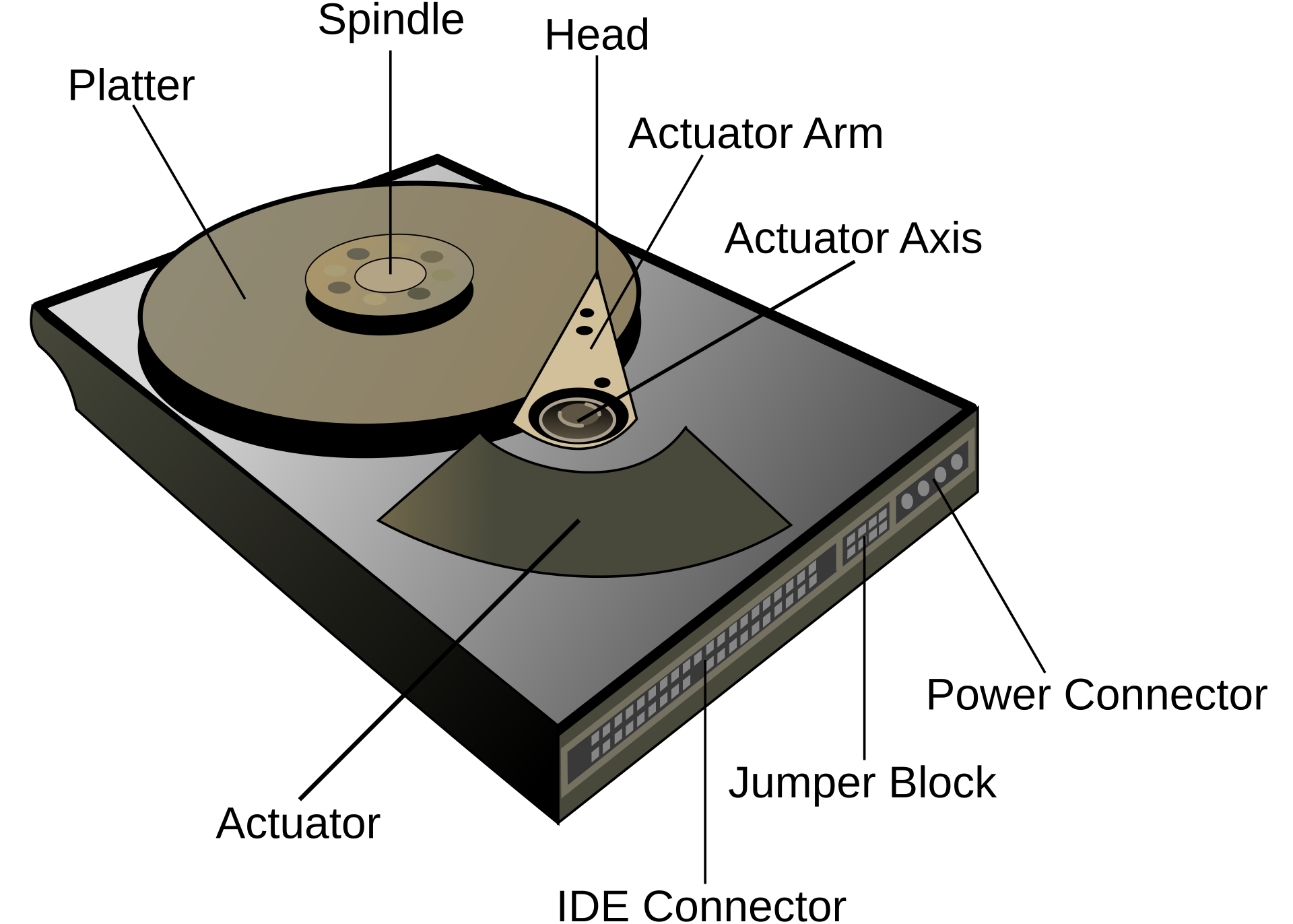
- A mechanical device with moving parts.
- Stores data on rapidly rotating magnetic platters.
- A read/write head on a mechanical arm moves to access data.
Characteristics
- ✅ Very large storage capacities (Terabytes).
- ✅ Low cost per gigabyte.
- ❌ Slower due to physical movement.
- ❌ Less durable & consumes more power.
Inside a Hard Disk Drive
🎬 How the Head Writes Magnetic Bits
2. Solid-State Drives (SSD)
The modern standard for fast, responsive computing.
How it Works ⚡
- No moving parts!
- Uses interconnected flash-memory chips to store data electronically.
- Like a very large, very fast USB flash drive.
Characteristics
- ✅ Significantly faster than HDDs.
- ✅ More durable, quieter, and power-efficient.
- ❌ More expensive per gigabyte.
📊 HDD vs. SSD: The Showdown
Hard Disk Drive (HDD)
- Mechanical Parts
- Slower Speed
- Lower Cost per GB
- Less Durable
- Best for: Mass storage, backups, large media files.
Solid-State Drive (SSD)
- No Moving Parts
- Blazing Fast Speed ⚡
- Higher Cost per GB
- More Durable
- Best for: Operating System, frequently used applications.
Pro Tip: Many modern systems use both! An SSD for the OS and apps, and an HDD for data.
🎬 Same Laptop: HDD vs SSD
⚡ Not All SSDs Are Equal: SATA vs NVMe
Typical top sequential speeds:
- HDD: about 100–200 MB/s
- SATA SSD: about 550 MB/s (the SATA connection tops out near 600 MB/s)
- NVMe SSD (PCIe 3.0): about 3,500 MB/s
- NVMe SSD (PCIe 4.0): about 7,000 MB/s
NVMe drives are usually small M.2 sticks that connect straight to the motherboard's PCIe lanes, skipping the slower SATA link.
🧮 Worked Example: Copying a 50 GB Game
How long does copying 50 GB (50,000 MB) take at top speed?
- HDD at 150 MB/s: 50,000 ÷ 150 ≈ 333 s, about 5½ minutes
- SATA SSD at 550 MB/s: 50,000 ÷ 550 ≈ 91 s, about 1½ minutes
- NVMe SSD at 3,500 MB/s: 50,000 ÷ 3,500 ≈ 14 seconds
Real copies are slower because of many small files, heat and the speed of the other drive, but the ranking holds.
Practical Application: Buying a Laptop in Nepal
Imagine you're at a computer shop in Putalisadak, Kathmandu. Which drive do you choose?
Scenario 1: University Student
- Needs: Fast boot-up for classes, quick application loading for assignments.
- Context: Laptops get carried around, risking bumps. Power stability can be a concern.
- Best Choice: An SSD is essential. Its speed and durability (no moving parts) make it perfect for student life.
Scenario 2: Media Professional
- Needs: Storing large video files and photo libraries.
- Context: Budget is a factor, but large capacity is non-negotiable.
- Best Choice: A hybrid setup. A 256GB/512GB SSD for the OS and editing software, plus a 1TB+ HDD for storing raw footage and archives.
3. Optical Storage 💿
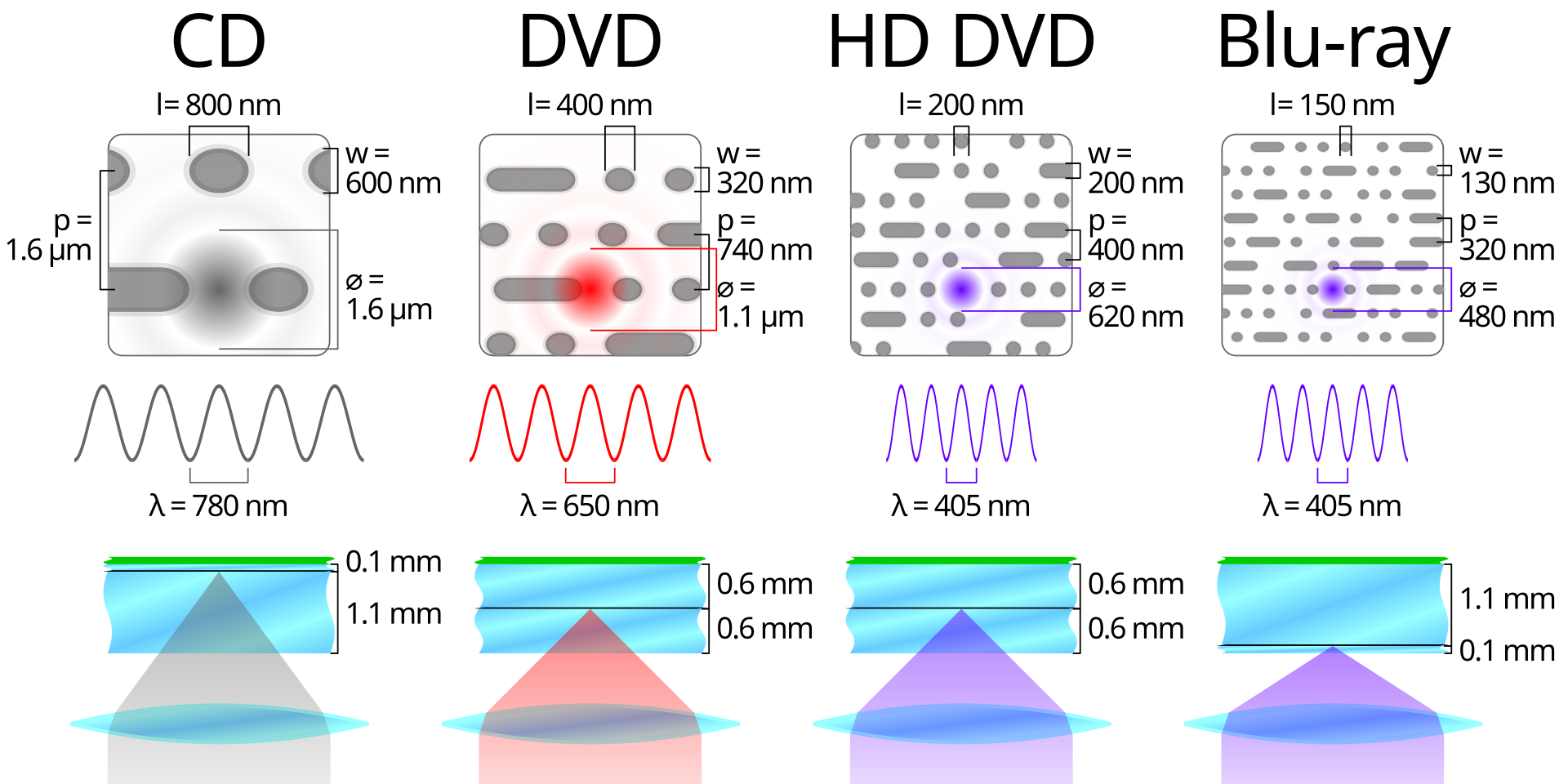
Uses a laser to read and write data on a spinning disc by creating tiny pits on its surface.
CD
Compact Disc (~700 MB)
DVD
Digital Versatile Disc (~4.7 GB)
Blu-ray
Blu-ray Disc (~25 GB)
While once essential, optical drives are now rare in laptops. They've been largely replaced by faster, higher-capacity USB drives and cloud storage.
CD vs DVD vs Blu-ray
🎬 How a Laser Reads a Disc
🎬 A CD Under the Microscope
🗣️ Discussion Time
- What are the three main advantages of an SSD over an HDD?
- Why would a user choose a computer with both an SSD and an HDD?
- What technologies have replaced optical drives for software installation and watching movies?
☁️ Storage You Don't Own: The Cloud
Cloud storage keeps your files on a provider's servers, which you reach over the internet.
- Free tiers: Google Drive 15 GB (shared with Gmail and Photos), Apple iCloud 5 GB, Microsoft OneDrive 5 GB.
- Your files still sit on physical drives, in data centres full of HDDs and SSDs, usually copied to more than one location.
- ✅ Access anywhere, easy sharing, off-site safety. ❌ Needs internet, costs more for extra space, and privacy depends on the provider.
💥 Every Drive Eventually Fails
Quick poll: Hands up if your photos live in only one place, such as just your phone.
- Real data: Backblaze, a US cloud-backup company, publishes failure statistics for the hundreds of thousands of drives it runs. In recent years, about 1–2% of its hard drives have failed each year.
- The 3-2-1 backup rule: keep 3 copies of important data, on 2 different types of storage, with 1 copy off-site (for example, in the cloud).
🎯 Activity: Choose the Storage
In pairs, pick the best storage for each case, then reveal.
- A photographer archiving 10 years of RAW photos (8 TB). Answer: large HDDs plus a cloud or off-site copy
- A gamer who hates long loading screens. Answer: an NVMe SSD
- Taking slides to a classroom PC with no internet. Answer: a USB flash drive
- A bank keeping 20 years of records it rarely reads. Answer: magnetic tape (LTO), which is cheap and lasts decades. One LTO-9 cartridge holds 18 TB.
📝 Key Takeaways
- Secondary storage is non-volatile, providing long-term memory for your computer.
- HDDs are mechanical drives offering high capacity at a low cost, ideal for mass data storage.
- SSDs are flash-based drives that are much faster and more durable, perfect for operating systems and apps.
- Optical drives (CD, DVD, Blu-ray) are a slower, portable storage format that is becoming increasingly obsolete.
Image & Video Credits
Images (Wikimedia Commons)
- "Hard drive" diagram: Surachit, CC BY-SA 3.0 (rendered as PNG on a white background) — https://commons.wikimedia.org/wiki/File:Hard_drive.svg
- "Samsung SSD 840 120GB MZ-7TD120" board photo: MatteX, CC0 (labels added for this course) — https://commons.wikimedia.org/wiki/File:Samsung_SSD_840_120GB_MZ-7TD120--6_BOARD_TOP.JPG
- "Comparison CD DVD HDDVD BD": Cmglee, CC BY-SA 3.0 (rendered as PNG on a white background) — https://commons.wikimedia.org/wiki/File:Comparison_CD_DVD_HDDVD_BD.svg


Videos (YouTube)
- TED-Ed, "How do hard drives work? - Kanawat Senanan" (0:28 to 1:29)
- Edward Tech, "SSD vs HDD: Boot Test Windows 10!" (0:00 to 0:47)
- Into The Ordinary, "How Does Blu-ray Work? - LaserDisc, CD, DVD, Blu-ray Explained" (0:23 to 1:43)
- MicroScopers, "CD Under the Microscope" (0:05 to 1:07)
Exam Practice 📝
Short answer
- What is secondary storage? Give four examples.
- Differentiate between HDD and SSD.
- What is cloud storage? State one advantage and one disadvantage.
Long answer
- Explain the different types of secondary storage devices and compare them.
- Suggest a storage and backup plan for a small business, explaining the 3-2-1 rule.
Revise the answers in the full note linked on the last slide.
Thank You
Questions before we wrap this hour?
Next: Unit 3 · Session 6 — How Computers Use Memory