Learning Objectives
By the end of this chapter, you will be able to:
- Define an I/O port and its function.
- Identify common I/O ports like USB and HDMI, and their uses.
- Differentiate between serial and parallel ports.
- Define the system bus and its role in the computer.
- Explain bus width and expansion buses.
Connecting Peripherals: I/O Ports
An I/O (Input/Output) port is a physical connector on a computer that allows you to connect external peripheral devices. These ports are the interface between the computer and the outside world.
Common I/O Ports
- USB (Universal Serial Bus): The most common type of port, used for connecting a wide variety of devices, including keyboards, mice, printers, and external drives.
- HDMI (High-Definition Multimedia Interface): Used for transmitting high-definition video and audio from a computer to a monitor or television.
- Audio Jacks: Used for connecting speakers, headphones, and microphones.
- Ethernet Port: Used for connecting to a wired network.
| Port | Type of data | Typical devices |
|---|---|---|
| USB-A | Data and power | Keyboard, mouse, pen drive, printer |
| USB-C | Data, power, and video | Modern phones, laptops, chargers, docks |
| HDMI | Digital video and audio | Monitor, TV, projector |
| DisplayPort | Digital video and audio | High-resolution or gaming monitors |
| VGA | Analog video (older) | Older projectors and monitors |
| Ethernet (RJ-45) | Network data | Router, switch, network cable |
| Audio jack (3.5 mm) | Analog audio | Headphones, speakers, microphone |
| Thunderbolt | Very fast data and video | External SSDs, docks, high-end displays (often in USB-C shape) |
| SD card slot | Data | Camera memory cards |
USB versions keep getting faster: USB 2.0 (up to 480 Mbps), USB 3.x (5–20 Gbps), and USB4 (up to 40 Gbps or more). USB supports plug and play (devices work as soon as they are connected) and hot swapping (connecting and removing without restarting).
Serial vs parallel ports
- A serial port sends data one bit at a time over a single line. Old COM ports were serial; USB is a modern, very fast serial standard.
- A parallel port sends several bits at the same time over multiple lines. Old printers used parallel (LPT) ports.
Modern computers prefer high-speed serial connections because parallel cables suffer from interference and timing problems over distance.
Wireless connections
Many peripherals now connect without ports, using Bluetooth (headphones, keyboards), Wi-Fi (printers), or NFC (tap-to-pair).
The System Bus: The Computer’s Highway
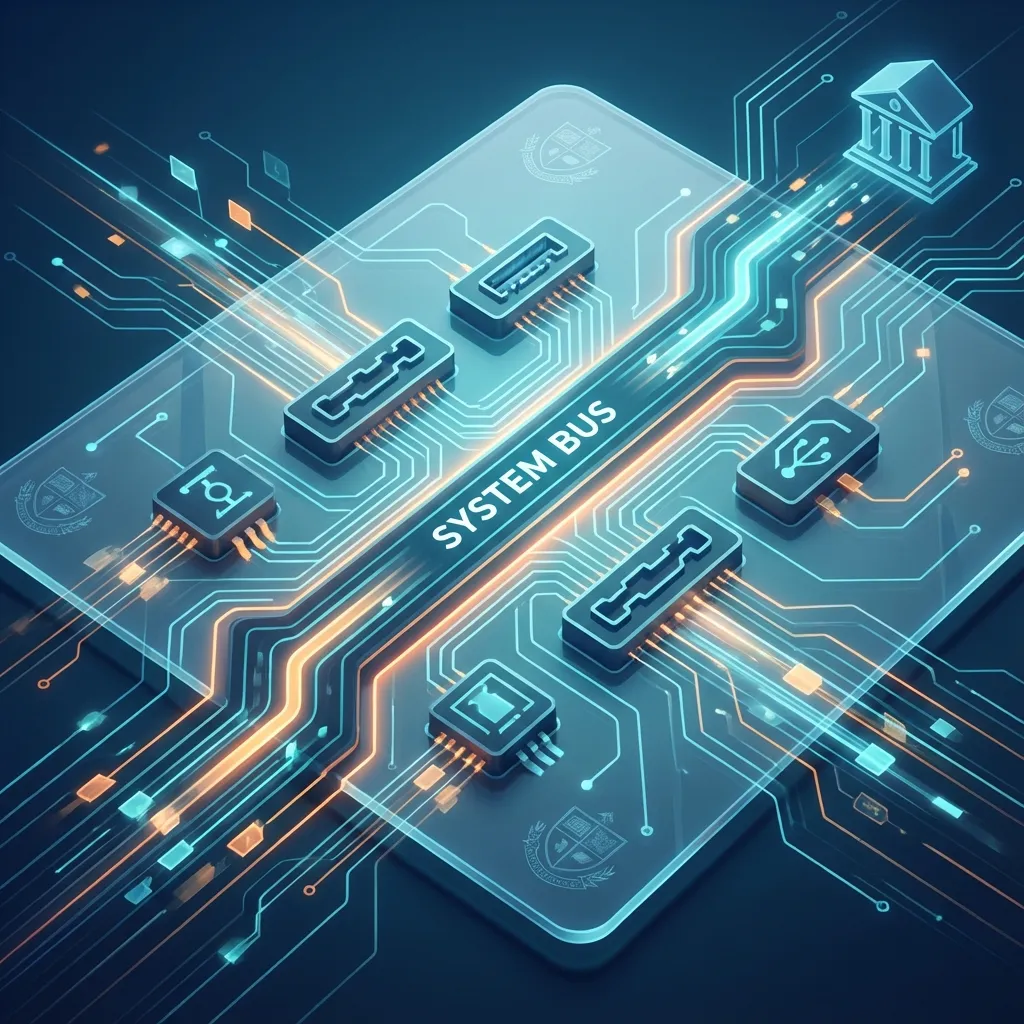
The system bus (also called the motherboard bus) is the communication pathway that connects all of the major components of a computer, including the CPU, RAM, and I/O ports. It is like a highway system that allows data to travel between all the different parts of the computer.
flowchart TB
  CPU["CPU"]
  RAM["RAM"]
  IO["I/O Ports<br/>(USB, HDMI, Ethernet)"]
  Bus["System Bus<br/>(Data, Address, Control lines)"]
  CPU --- Bus
  RAM --- Bus
  IO --- Bus
Figure 1: System Bus Connecting CPU, Memory, and I/O
The system bus is composed of three main parts:
- Data Bus: Carries the actual data being transferred.
- Address Bus: Carries the information about where the data is supposed to go (i.e., the memory address).
- Control Bus: Carries control signals from the CPU to coordinate the activities of all the other components.
| Bus | Carries | Direction |
|---|---|---|
| Data bus | Actual data | Two-way (to and from the CPU) |
| Address bus | Memory or device addresses | One-way (from the CPU) |
| Control bus | Read/write and timing signals | Two-way |
Bus width and speed
- Bus width is the number of bits a bus can carry at once (for example, 32-bit or 64-bit). A wider data bus moves more data per trip, like a highway with more lanes.
- The width of the address bus decides how much memory can be addressed. A 32-bit address bus can address 2³² locations, which is why 32-bit systems are limited to about 4 GB of RAM.
- Bus speed (clock rate) is how many trips happen per second. Overall performance depends on both width and speed.
Expansion bus
An expansion bus connects add-on cards to the motherboard through expansion slots. The modern standard is PCI Express (PCIe), used for graphics cards, NVMe SSDs, and network cards.
Practical Example
A student wants to connect a laptop to a classroom projector. If the projector only has a VGA port and the laptop only has HDMI and USB-C, she needs an HDMI-to-VGA adapter. Knowing ports saves time before an important presentation.
Summary
I/O ports are the physical sockets that allow us to connect external devices to a computer, with USB being the most common standard alongside HDMI, Ethernet, and audio ports. Modern ports are mostly fast serial connections. Internally, all of the computer’s components, including the CPU, RAM, and I/O ports, are connected and communicate with each other via the system bus — made of data, address, and control buses — which acts as the main data highway of the motherboard. Bus width and speed affect performance, and expansion buses such as PCIe allow new cards to be added.
Key Takeaways
- I/O ports are physical connectors for peripheral devices.
- USB is the most common and versatile I/O port and supports plug and play.
- Serial ports send one bit at a time; parallel ports send several.
- The system bus is the communication pathway that connects all the major components of a computer.
- The data, address, and control buses each have a different job; wider buses move more data.
Discussion Questions
- Look at the back of a desktop computer or the side of a laptop. What I/O ports do you see?
- Why is it called the “Universal” Serial Bus (USB)?
- Using the highway analogy, what would happen if the system bus was too slow for the CPU?
Exam-Style Questions
Short answer
- What is an I/O port? Name four common ports and their uses.
- Differentiate between serial and parallel ports.
- What is bus width?
Long answer
- Explain the system bus and its three components.
- Describe common I/O ports found on modern computers and explain why USB has become the most popular.