CapCut vs. Canva: The Ultimate Video Editing Showdown for Digital Marketers in 2026
In the fast-paced ecosystem of digital marketing, agility is often more valuable than perfection. The era of needing a $3,000 workstation and Adobe Premiere Pro for every piece of social content is over. Today, the battle for short-form dominance is fought on more accessible battlegrounds.
Two giants have emerged as the standard-bearers for rapid content creation: CapCut and Canva.
As a digital marketing mentor and practitioner, I am frequently asked by students and business owners: “Which one should I prioritize?” The answer is not simple, because they are fundamentally different tools solving overlapping problems.
This article provides a comprehensive, structured comparison of CapCut vs. Canva for video editing, focusing on ROI, workflow efficiency, and professional output.
The Core Philosophy: Design-First vs. Video-First
To understand which tool to use, you must understand their DNA.
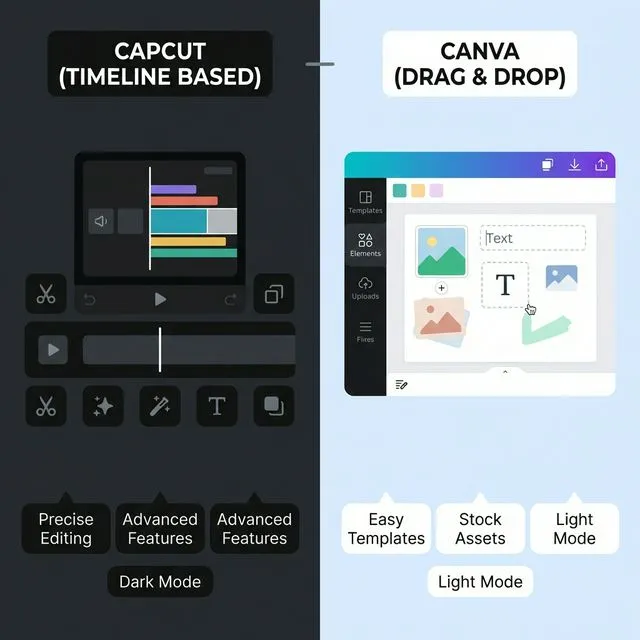
Canva is a design tool that learned to edit video. Its strength lies in layout, typography, and brand consistency. It treats video clips as elements on a canvas—movable, layerable, and design-centric.
CapCut is a video editor that learned to be social. Its DNA is rooted in the timeline. It focuses on the flow of time, precise cuts, speed, and audio synchronization. It treats video as a sequence of events.
Understanding this distinction is key to choosing the right tool for the right task.
1. Editing Capabilities and Precision
When we talk about pure editing power, the gap between the two is significant.
CapCut: The Surgeon’s Scalpel
CapCut provides granular control that Canva currently lacks.
- Timeline Precision: You can zoom in to the frame level for precise cuts.
- Speed Ramping: The ability to alter the speed of a clip using curves (mounting standard in viral content) is native and intuitive in CapCut.
- Keyframing: This is a professional feature brought to mobile. You can animate positioning, scale, and opacity over time, allowing for dynamic custom movements.
- Color Grading: CapCut offers surprisingly robust HSL (Hue, Saturation, Lightness) adjustments and LUT support.
Canva: The Broad Brush
Canva’s timeline is simpler. It is excellent for “scene-based” editing.
- Drag-and-Drop Simplification: You place clips in order. Trimming is easy but lacks frame-perfect precision.
- Transitions: While available, they are often basic “slide” or “dissolve” effects compared to CapCut’s trend-driven transitions.
- Animations: You animate elements (text, stickers) entering or exiting the page, rather than keyframing specific movements.
Winner for Pure Video Editing: CapCut
2. Audio Engineering and Captions
Sound is 50% of the video experience.
CapCut dominates here. Its “Auto-Captions” feature is industry-leading, detecting speech and generating synced subtitles instantly, which you can then style to match current trends (like the Hormozi style). It also allows for audio extraction, noise reduction, and beat syncing.
Canva has improved its “Beat Sync” feature, allowing clips to snap to the rhythm of the music. However, its manual audio mixing capabilities—adjusting volume levels of specific sound effects at specific times—are clunky compared to CapCut’s multi-track audio timeline.
Winner for Audio & Captions: CapCut
3. Branding and Asset Management
This is where Canva strikes back hard.
Canva is built for businesses. The Brand Kit is a non-negotiable asset for professional marketers.
- Logo & Fonts: Your corporate fonts, color palettes, and logos are always one click away.
- Templates: If you need to produce 50 variations of a product announcement, Canva’s “Bulk Create” and template systems are unmatched.
- Stock Library: Canva Pro gives you access to a massive library of royalty-free videos, graphics, and audio that usually clears copyright checks for commercial use better than CapCut’s trend-heavy library.
CapCut focuses on trends. While you can import your fonts, managing a cohesive “corporate brand identity” across multiple videos is more manual.
Winner for Branding: Canva
4. Collaboration and Workflow
For agency teams and marketing departments, workflow dictates the tool.
Canva lives in the cloud. You can have a junior editor draft a video, and a senior manager can leave comments directly on the timeline or make edits in real-time from a different country. The collaboration features are enterprise-grade.
CapCut has introduced cloud storage and distinct “Space” features for teams, but it is primarily a local-first application (especially the desktop version). Moving projects between devices or team members can still be frictionless, but it is not as seamless as Canva’s browser-based live collaboration.
Winner for Teams: Canva
Use Case Scenarios: Which Tool for Which Job?
As a professional, you should not be loyal to a tool; you should be loyal to the output. Here is my breakdown of when to use which:
Scenario A: The “Talking Head” Reel or TikTok
- Task: You are speaking to the camera, sharing a tip. You need jump cuts, captions, and b-roll pop-ups.
- Choice: CapCut. The auto-captions and “Remove Background” (even without green screen) are superior. The workflow is faster for linear storytelling.
Scenario B: The Corporate Explainer or Event Promo
- Task: You need to announce a webinar or showcase a product launch with heavy text overlays, branded backgrounds, and your logo.
- Choice: Canva. You can design the slides beautifully, ensure the colors match your brand guidelines perfectly, and animate the text. Video clips here are secondary to the information.
Scenario C: The Kinetic Typography Ad
- Task: High energy, fast text moving to music, very few video clips.
- Choice: Canva. Its text animation presets (Typewriter, Ascend, Bounce) combined with its graphic library make motion graphics accessible to non-animators.
The Hybrid Workflow for 2026
The smartest content creators do not choose; they combine.
A highly effective workflow I teach my students is:
- Draft in CapCut: Handle the “heavy lifting” of the video files—cutting out silences, color correcting, and syncing audio. Export the “clean” video.
- Polish in Canva: Import that video into a Canva sequence. Add your branded intro/outro, apply your corporate fonts for the title card, and overlay high-quality stock graphics.
Conclusion: The ROI Verdict
If your content strategy relies on personality, trends, and storytelling, invest your time in mastering CapCut. It brings you closer to the native feel of social platforms.
If your content strategy relies on consistency, information, and brand identity, Canva is your stronghold. It ensures that even video content looks like your company.
For the modern digital marketer, proficiency in both is no longer a luxury—it is a baseline requirement.
Suggested Internal Links
- 7 Essential Digital Marketing Skills for Undergraduates
- Why Personal Branding Matters for BBA Students
- Structuring Your Social Media Calendar