Launching WinSim: A Risk-Free Windows OS Installation Simulator
We are excited to announce a new educational tool on arjankc.com.np: the WinSim OS Installation Simulator.
For many students and beginners, the process of installing an Operating System (OS) can be intimidating. Concepts like “BIOS”, “Partitioning”, and “Formatting” often come with the fear of accidentally wiping important data or “bricking” a computer.
To bridge this gap between theory and practice, we have developed a browser-based simulator that replicates the experience of installing Windows.
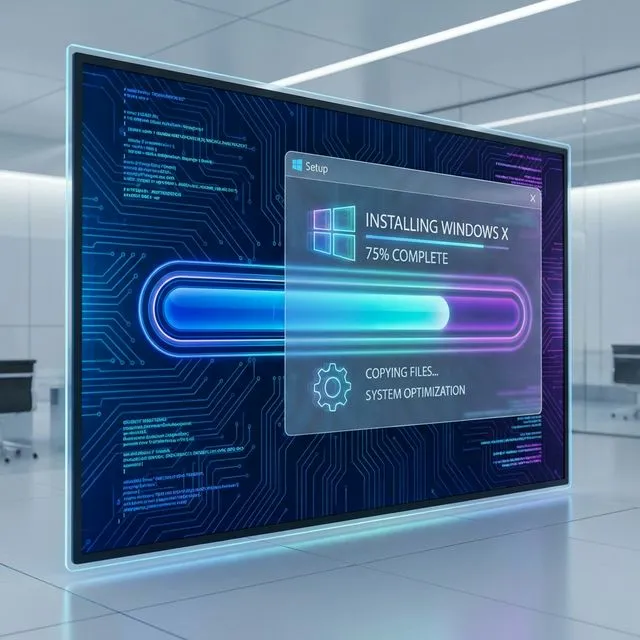
If you’re building foundational digital skills for classrooms and training programs, this simulator works especially well alongside our guides on low-tech, high-impact teaching approaches and practical cyber hygiene for students in Nepal.
Why Use a Simulator?
- Risk-Free Learning: Make mistakes without consequences. If you format the wrong “drive” in the simulator, just refresh the page!
- Interactive Experience: Go through the actual steps of a Windows installation, including BIOS setup, disk partitioning, and the OOBE (Out of Box Experience).
- Accessible Anywhere: No need for spare hardware or virtual machines. It runs directly in your browser.
mindmap
  root(("WinSim Benefits"))
      Risk-Free Learning
          Mistakes without consequences
          Just refresh the page!
      Interactive Experience
          Actual Windows installation steps
          BIOS setup, partitioning, OOBE
      Accessible Anywhere
          No spare hardware
          No virtual machines
          Runs in browser
Figure 1: Benefits of Using WinSim Simulator
Key Features
- BIOS Simulation: Learn how to navigate a BIOS menu to change boot order and secure boot settings.
- Disk Partitioning: Practice creating, deleting, and formatting drive partitions.
- Visual Fidelity: A UI designed to mimic the look and feel of a real installation process.
Try It Now
Ready to practice your IT skills?
Launch Windows Installation Simulator
This project is open source and available on GitHub. Feedback and contributions are welcome!
Related Learning Paths
- Explore practical classroom activities in this computer science unplugged guide for Nepal.
- See how schools can scale responsibly with this school Wi-Fi budget planning guide.
- For teachers introducing more technology, this coding concepts for teachers primer is a great next step.
Related Posts and Resources
- Low-Tech, High-Impact Teaching in Nepal
- Coding for Teachers in Nepal
- Data-Driven Grading for Educators
- Open-Source Schools in Nepal
- Gamification in Nepali Classrooms
- Cyber Hygiene for Students and Teachers
- Flipped Classroom in Nepal
- CS Unplugged Activities in Nepal
- School Wi-Fi Budget Planning
- AI-Based Assessment in Nepal
Visual Summaries
graph TD
    A[Start WinSim] --> B{BIOS Simulation};
    B --> C{"Change Boot Order / Secure Boot"};
    C --> D{Disk Partitioning};
    D --> E{"Create, Delete, Format Partitions"};
    E --> F[Windows Installation UI];
    F --> G["Out of Box Experience (OOBE)"];
    G --> H[Simulation Complete];
Figure 2: WinSim User Interaction Flow