Unit 1 · Session 2
Classification, Functions, and System Components
Learning Objectives 🎯
By the end of this chapter, you will be able to:
- ✅ Classify computers based on their size and processing power.
- ✅ Define and provide examples of microcomputers.
- ✅ Differentiate between minicomputers, mainframes, and supercomputers.
The Spectrum of Computing Power 📊
Computers are categorized based on physical size, processing power, and application.
We classify them into four main types, from smallest to largest:
- Microcomputers (Personal Computers)
- Minicomputers (Midrange Servers)
- Mainframe Computers (Enterprise Servers)
- Supercomputers (High-Performance Computing)
1. Microcomputers
Definition: The most common type of computer, designed for individual users and powered by a single microprocessor. Also known as a Personal Computer (PC).
- Users: Single user
- Size: Small, portable
- Cost: Relatively inexpensive
- Purpose: General tasks (work, study, entertainment)
Examples of Microcomputers
Desktops
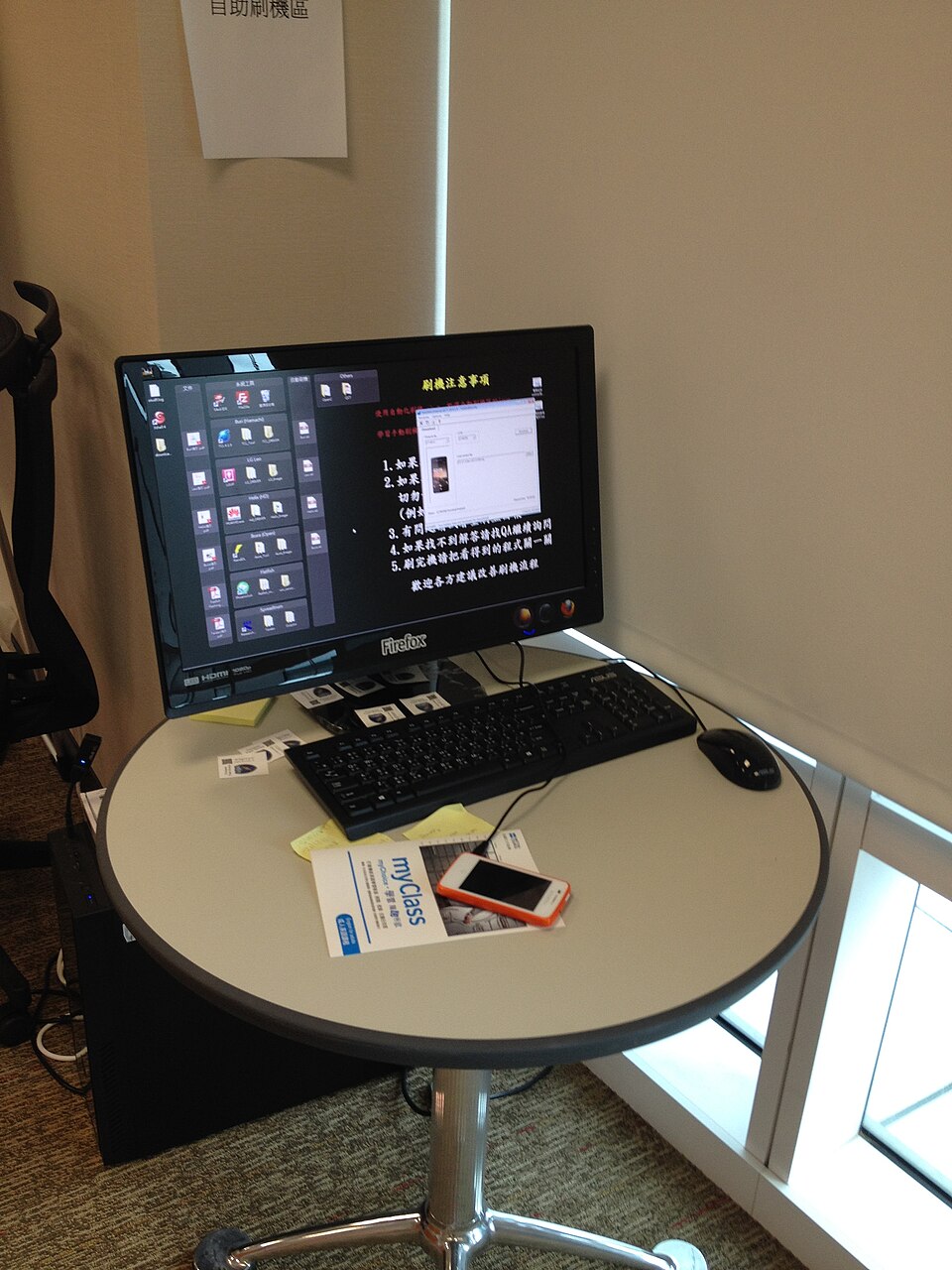
Separate monitor, keyboard, and tower. Common in offices and homes.
Laptops/Notebooks
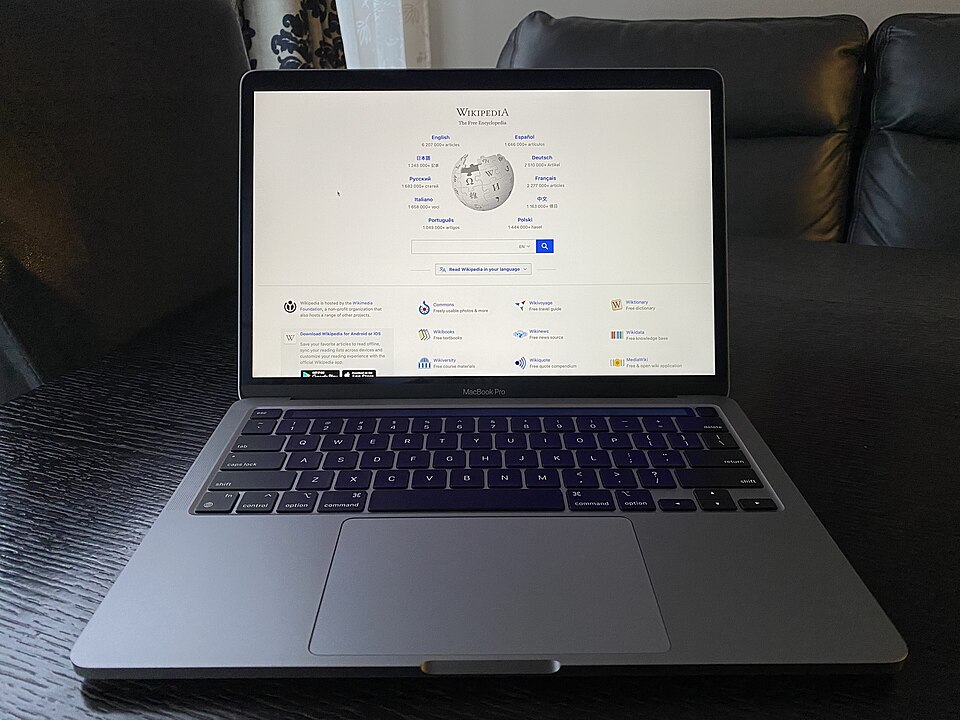
Portable, all-in-one design for mobility. The primary tool for students.
Smartphones/Tablets
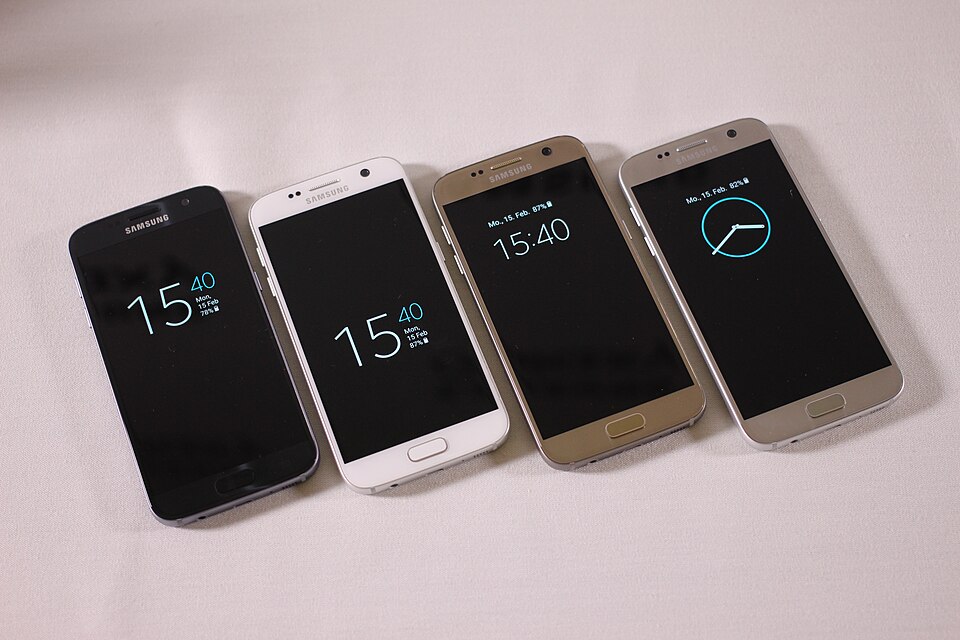
Handheld computers with touch interfaces for ultimate portability.
Quick Check: Spot the Microcomputer
Click ALL devices that qualify as microcomputers.
Laptop Computer
Portable, used by a single student for assignments and browsing.
University Department Server
Handles logins and file storage for 200 simultaneous faculty users.
Smartphone
Handheld touch-screen device for calls, apps, and internet.
Nabil Bank Core System
Processes millions of ATM and branch transactions every day.
2. Minicomputers (Midrange)
Definition: Multi-user computers, more powerful than microcomputers, that can support hundreds of users simultaneously.
- Users: 10s to 100s of users
- Size: Small cabinet to room-sized
- Purpose: Departmental needs, servers for specific business applications.
🔍 The line between powerful microcomputer servers and minicomputers is blurring today.
Minicomputer: Reveal the Facts
Click each ? button to reveal the answer for a Minicomputer.
| Property | Microcomputer | Minicomputer |
|---|---|---|
| Concurrent Users | 1 user | |
| Typical Setting | Home / Personal | |
| Example Use | Writing reports, gaming | |
| Relative Cost | Low |
3. Mainframe Computers
Definition: Large, powerful, and expensive computers designed for high-volume, transaction-intensive applications for thousands of users.
- Users: Thousands of concurrent users
- Key Features: High reliability, security, and massive data processing.
- Purpose: Mission-critical tasks for large organizations.
- Example: Processing millions of banking transactions per day.
Mainframe: True or False?
Mainframes are designed to handle thousands of concurrent users.
Mainframes are primarily built for complex scientific calculations like weather modeling.
High reliability and security are critical features of mainframe computers.
Banks commonly use mainframes for mission-critical transaction processing.
4. Supercomputers ⚡
Definition: The fastest and most powerful computers, designed for complex scientific and engineering calculations at extreme speeds.
- Focus: Not transactions, but calculations.
- Performance: Measured in FLOPS (Floating-point Operations Per Second).
- Architecture: Thousands of processors working in parallel.
- Purpose: Weather forecasting, climate research, simulations.
Rank by Performance Power
Click each type in order from SLOWEST to FASTEST.
At a Glance: Computer Classification
Microcomputer
- Use: Personal
- Power: Low
- Example: Your Laptop
Minicomputer
- Use: Departmental Server
- Power: Medium
- Example: University Dept. Server
Mainframe
- Use: Enterprise-wide
- Power: High (Transactions)
- Example: Bank's Core System
Supercomputer
- Use: Scientific Research
- Power: Extreme (Calculations)
- Example: Climate Modeling
Use-Case Matcher: Nepal Context
Select the correct computer type for each real-world scenario.
S1: A student at TU uses their personal laptop at home for assignments and research.
S2: Nepal Rastra Bank processes millions of nationwide interbank transactions daily without downtime.
S3: The DHM in Kathmandu runs complex monsoon climate simulation models requiring extreme computation.
S4: TU's IT department hosts a shared file and email server used by 300 faculty members simultaneously.
Application in Nepal 🇳🇵
Match the Computer to the Task:
Scenario 1: Nabil Bank needs to process millions of daily ATM, mobile banking, and branch transactions securely.
They would use a Mainframe Computer for its reliability and high transaction throughput.
Scenario 2: The Department of Hydrology and Meteorology in Kathmandu needs to run complex models to predict monsoon patterns.
They would use a Supercomputer for its massive calculation capabilities.
Discussion Point: Blurring Lines
A modern high-end gaming PC has multiple processor cores, massive RAM, and incredible graphics capabilities, far exceeding the power of minicomputers from a few decades ago.
Is a high-end gaming PC a microcomputer or a minicomputer?
It's still a microcomputer. Why? Because its fundamental architecture is designed for a single user, not for serving hundreds of simultaneous users like a true minicomputer or server.
Key Takeaways
- Computers are classified into four main types: micro, mini, mainframe, and supercomputer.
- Microcomputers (like your phone and laptop) are designed for individual users.
- Mainframes are the workhorses of large organizations, focusing on reliable, high-volume transaction processing.
- Supercomputers are specialized machines built for extremely fast and complex scientific calculations.
Exam Practice: Short Answer
- What is a microcomputer? Give three examples.
- Differentiate between a mainframe and a supercomputer.
- What is a hybrid computer? Give an example.
Exam Practice: Long Answer
- Classify computers on the basis of size, with characteristics and examples of each.
- Explain the classification of computers by working principle and by purpose.
Revise the chapter note before writing these answers.
Thank You!
Any Questions?
Read the full note: Classification of Computers by Size
Next deck: Unit 1.6: Data and Program Representation in a Computer
Learning Objectives
By the end of this chapter, you will be able to:
- ✅ Explain the four primary functions of a computer.
- ✅ Describe the IPOS cycle and how the functions interconnect.
- ✅ Identify examples of input, output, and storage devices.
- ✅ Differentiate between soft copy and hard copy output.
- ✅ Distinguish between primary and secondary storage, and volatile vs. non-volatile memory.
The Four Functions of a Computer
Every computer, from a smartphone to a supercomputer, performs exactly four fundamental functions.
1. Input
Accepting raw data from the user or environment.
2. Processing
Transforming raw data into meaningful information.
3. Output
Presenting the processed result to the user.
4. Storage
Retaining data and information for future use.
Together, these form the IPOS Cycle — the foundation of all computing.
The IPOS Cycle
The four functions work together in a continuous cycle:
Real-world example: You type a search query (Input) → The search engine finds results (Process) → Results appear on screen (Output) → Your history is saved (Storage).
Interactive: Arrange the IPOS Cycle
Click each function below to place it in order (1→4). Then check your answer.
The Input Function
Input is any raw data or instruction entered into the computer from the outside world.
Types of Input
Data Input
- Text (keyboard)
- Numbers (keyboard, numpad)
- Images (scanner, camera)
- Audio (microphone)
Command Input
- Mouse clicks
- Touch gestures
- Voice commands
- Sensor signals
Input Devices
Input devices convert real-world signals into digital data the CPU can process.
Manual Input
- Keyboard
- Mouse / Trackpad
- Touchscreen
- Joystick / Gamepad
Direct Input
- Scanner
- Digital Camera
- Barcode Reader
- Biometric Scanner
Sensor Input
- Microphone
- Temperature Sensor
- GPS Receiver
- Webcam
Data Conversion to Binary
Computers only understand binary (0s and 1s). All input — text, images, audio — must be converted into binary form before it can be processed.
- The letter 'A' becomes
01000001(ASCII code 65 in binary) - The number 5 becomes
00000101 - Colors in images are represented as binary values for red, green, and blue components
- The conversion happens automatically — input devices and the OS handle this for you
Interactive: Classify the Device
Classify each device: is it primarily an Input, Output, or Storage device?
The Processing Function
Processing is the transformation of raw input data into meaningful output. This is performed by the Central Processing Unit (CPU).
The CPU's Role
- The CPU is the "brain" of the computer — it executes instructions.
- It performs billions of operations per second (measured in GHz).
- It fetches instructions from memory, decodes them, executes them, and stores results.
Inside the CPU: ALU and Control Unit
Arithmetic Logic Unit (ALU)
- Performs all arithmetic operations: +, −, ×, ÷
- Performs all logical operations: AND, OR, NOT, comparisons
- The "calculator" inside the CPU
Control Unit (CU)
- Directs the flow of data between the CPU, memory, and I/O devices
- Fetches and decodes instructions from memory
- The "manager" inside the CPU
Together, the ALU and CU execute the Fetch-Decode-Execute cycle millions of times per second.
Processing Speed Concepts
Clock Speed
Measured in GHz. A 3 GHz CPU can execute 3 billion cycles per second.
Cores
Modern CPUs have multiple cores — each can process tasks independently, enabling parallel processing.
Cache
A small, very fast memory inside the CPU that stores frequently used data to avoid waiting for RAM.
Interactive: The ALU in Action
The ALU performs arithmetic and logic operations on binary numbers. Try it below:
The Output Function
Output is the processed result delivered to the user or another system, transforming data inside the computer into something a human can understand.
Soft Copy
Electronic output — exists only in digital form.
- Text on screen
- Video / Audio playback
- PDF on screen
Hard Copy
Physical output — exists in the real world.
- Printed documents
- 3D printed objects
- Blueprints / Technical drawings
Output Devices
Visual Output
- Monitor / Display
- Projector
- LED Display
- VR Headset
Audio Output
- Speakers
- Headphones / Earbuds
- Piezo Buzzer
Printed Output
- Inkjet Printer
- Laser Printer
- 3D Printer
- Plotter
Interactive: Soft Copy or Hard Copy?
Is the output a Soft Copy (digital/electronic) or Hard Copy (physical/tangible)?
The Storage Function
Storage retains data and instructions, both when the computer is running and when it is turned off.
Primary Storage
Directly accessible by the CPU. Also called main memory.
- RAM (Random Access Memory)
- ROM (Read-Only Memory)
- Cache memory
Secondary Storage
Not directly accessible by CPU. Larger capacity, slower speed.
- Hard Disk Drive (HDD)
- Solid State Drive (SSD)
- USB Flash Drive
- Optical Disc (CD/DVD)
Volatile vs. Non-Volatile Storage
Volatile Memory
Loses data when power is cut.
- RAM: Working memory — holds programs currently running
- Cache: CPU ultra-fast scratch pad
- CPU Registers: Tiny storage cells inside the CPU
Non-Volatile Memory
Retains data without power.
- HDD / SSD: Long-term file storage
- ROM: Firmware / BIOS
- Flash (USB drives, SD cards)
- Optical (CD, DVD, Blu-ray)
Interactive: Storage Hierarchy Explorer
Click any level to learn about it. Fastest and smallest at the top; slowest and largest at the bottom.
Top = fastest, smallest, most expensive | Bottom = slowest, largest, cheapest
The Complete IPOS Cycle
All four functions work together in a continuous, interconnected cycle:
Example: eSewa Digital Payment (Nepal)
- Input: You type the recipient's number and payment amount on your phone.
- Storage: The app retrieves your account balance from the database.
- Processing: The CPU verifies your balance, calculates deductions, and applies the transaction.
- Output: A confirmation message is displayed on screen and a notification is sent.
- Storage: The updated balances are written back to the database.
Real-World Examples: Data Flow Diagram
How data flows through all four functions:
Keyboard, Mouse, Camera, Scanner
Fetch → Decode → Execute
Monitor, Printer, Speakers
RAM, HDD, SSD, Cloud
Summary: The Four Functions
- Input: Accepts raw data from users or the environment through input devices such as keyboard, mouse, and scanner.
- Processing: The CPU (ALU + Control Unit) transforms input data into information through the Fetch-Decode-Execute cycle.
- Output: Delivers results as soft copy (screen, audio) or hard copy (printed) through output devices.
- Storage: Retains data in primary memory (RAM — volatile) or secondary storage (HDD/SSD — non-volatile).
These four functions form the IPOS Cycle — the universal model for every computing task.
Exam Practice: Short Answer
- List the four basic functions of a computer.
- Differentiate between primary and secondary storage.
- Give two examples each of input and output devices.
Exam Practice: Long Answer
- Explain the IPOS cycle with a diagram and an example.
- Describe the functions of a computer using an online shopping or banking example.
Revise the chapter note before writing these answers.
Thank You!
Read the full note: Functions of a Computer
Next deck: Unit 1.5: Classification of Computers by Size and Power
Learning Objectives
- Identify the five essential components of a computer system.
- Explain the role of hardware and software in computing.
- Describe how data flows through a computer system.
- Explain why procedures and people matter in IT systems.
A System, Not Just a Machine
A computer system is an integrated set of components that work together to turn data into useful information.
🖥️ Hardware
The physical parts
💾 Software
The instructions
📊 Data
The raw facts
📋 Procedures
The rules for use
👥 People
The users and IT staff
1. Hardware: Four Functional Groups
Hardware is the physical, tangible part of a computer that you can see and touch.
| Group | Job | Examples |
|---|---|---|
| Input | Enter data | Keyboard, mouse, scanner, webcam |
| Processing | Work on data | CPU, GPU |
| Output | Present results | Monitor, printer, speakers |
| Storage | Keep data and programs | SSD, hard disk, USB drive, RAM |
2. Software: The Instructions
Software is the set of intangible programs that tell the hardware what to do.
⚙️ System software
Manages the hardware and provides a platform for other programs.
Windows, macOS, Linux, device drivers, utilities
📝 Application software
Helps users do specific tasks.
Word, web browsers, accounting software, games
Without software, hardware is essentially useless.
3. Data and Information
Data
Raw, unprocessed facts.
85, 90, 78, 92 (test scores)
Information
Data that has been processed into something meaningful.
"The class average is 86.25%"
The processing cycle: Input → Process → Output, with Storage keeping data and results for later use.
4. Procedures: The Rules of Use
Procedures are the rules, guidelines, and instructions that govern how the system is used.
- Operating procedures: step-by-step instructions for tasks
- Security procedures: how to protect data and systems
- Backup procedures: how and when data is copied
- Disaster recovery procedures: how to restore service after a failure
Written procedures keep operations consistent, help train new staff, and support security compliance.
5. People: The Most Important Component
- End users use the computer to do their work.
- IT professionals (administrators, programmers, technicians) build and maintain it.
- Managers decide what systems the organization needs.
- Data entry operators put data into the system.
Without skilled people, even the most advanced technology is ineffective.
How the Five Work Together
Example: a cashier processes a sale at a supermarket.
| People | The cashier scans the items |
| Hardware | Barcode scanner, POS terminal, receipt printer |
| Software | The point-of-sale application |
| Data | Product codes, prices, and quantities become an invoice |
| Procedures | Checkout steps and the store's discount policy |
Nepal Example: A Bank Branch
- Hardware: teller PCs, receipt printers, core banking servers
- Software: the core banking system and operating systems
- Data: customer accounts and transactions
- Procedures: KYC checks and end-of-day balancing
- People: tellers, IT officers, and customers
If one part fails (a printer breaks, staff skip KYC, or data is entered wrongly), the whole service suffers.
Key Takeaways
- Hardware is the physical foundation, but it needs software to function.
- Data becomes information only after processing.
- Procedures keep operations consistent and secure.
- People remain the most critical component.
- All five components must work together.
Exam Practice: Short Answer
- List the five components of a computer system.
- Why are people considered the most important component?
- What is meant by procedures in a computer system? Give an example.
Exam Practice: Long Answer
- Explain the five components of a computer system with examples.
- Using a business example, show how the five components work together.
Revise the chapter note before writing these answers.
Thank You
Read the full note: Components of a Computer System
Next deck: Unit 1.3: Generations of Computers