Deck 2
Input Devices: Keystroke and Touch
ICT 110: IT for Business
Today's Learning Objectives
- ✅ Differentiate between keystroke and touch inputs and their core business applications.
- ✅ Analyze how these devices improve efficiency in Finance, HR, and Operations.
- ✅ Evaluate the business case for specialized devices like POS systems and ruggedized tablets.
- ✅ Connect input device choices to specific business roles and tasks within a Nepali context.
The Gateway to Business Data
Input Device: Any hardware that sends data to a computer, allowing a user to interact with and control it.
Think of them as the "senses" of a business's information system. They capture the raw data that fuels decisions.
Why are they critical for business?
- Data Entry: The foundation of all information systems (e.g., sales figures, employee records).
- Command & Control: Operating software, from simple documents to complex ERP systems.
- Efficiency & Automation: The right tool for the right job speeds up processes immensely.
The Keyboard: The Business Workhorse
Types & Ergonomics
- Standard (QWERTY): Ubiquitous in office environments.
- Ergonomic: Designed to reduce strain for data-intensive roles (e.g., data entry clerks, programmers).
- Specialized: Keypads for accounting, programmable keys for specific software.
Core Business Applications
- 💰 Finance: Entering figures into spreadsheets (Excel) and accounting software (Tally).
- 🤝 Human Resources: Drafting employment contracts, updating employee databases in HRIS.
- ⚙️ Operations: Typing commands for inventory management systems, writing project status reports.
- 📊 General: Writing emails, creating presentations, and preparing business documents.
Keyboard in Action: A Supply Chain Analyst's Day
Scenario: Ramesh, a Supply Chain Analyst at a manufacturing company, is managing inventory.
- 9:00 AM: Uses his keyboard to log into the company's SAP (ERP) system.
- 10:30 AM: Enters new stock keeping units (SKUs) and quantities received from a supplier into the inventory module. Accuracy is critical.
- 2:00 PM: Uses keyboard shortcuts in Excel (e.g., VLOOKUP, Pivot Tables) to analyze stock levels and forecast demand.
- 4:00 PM: Types a detailed email to the procurement department to order new raw materials.
Pointing Devices: Navigating the GUI
Pointing devices translate a user's hand movements into cursor motion on screen. Essential for modern Graphical User Interfaces (GUIs).
Mouse
Standard for desktops. Offers high precision for tasks like graphic design or selecting specific cells in a large spreadsheet.
Touchpad
Integrated into laptops, crucial for mobile professionals. Saves space and enhances portability.
Trackball
Stationary device, good for limited desk space and can offer better ergonomics for some users.
The Touch Revolution: Direct Interaction
Touchscreen: An electronic visual display that the user can control through simple or multi-touch gestures by touching the screen with a special stylus or one or more fingers.
Key Advantages in Business
- Intuitive (less training needed)
- Fast for simple selections
- Reduces hardware footprint (no mouse/keyboard)
- Enables mobile and field work
Dominant Technology: Capacitive
Modern touchscreens (smartphones, tablets) use the electrical properties of the human body. They are durable and support multi-touch gestures (pinch-to-zoom), which is vital for viewing complex documents or maps.
Touchscreens in Operations & Retail
Touchscreens excel in environments where speed and simplicity are more important than complex data entry.
Point-of-Sale (POS) Systems
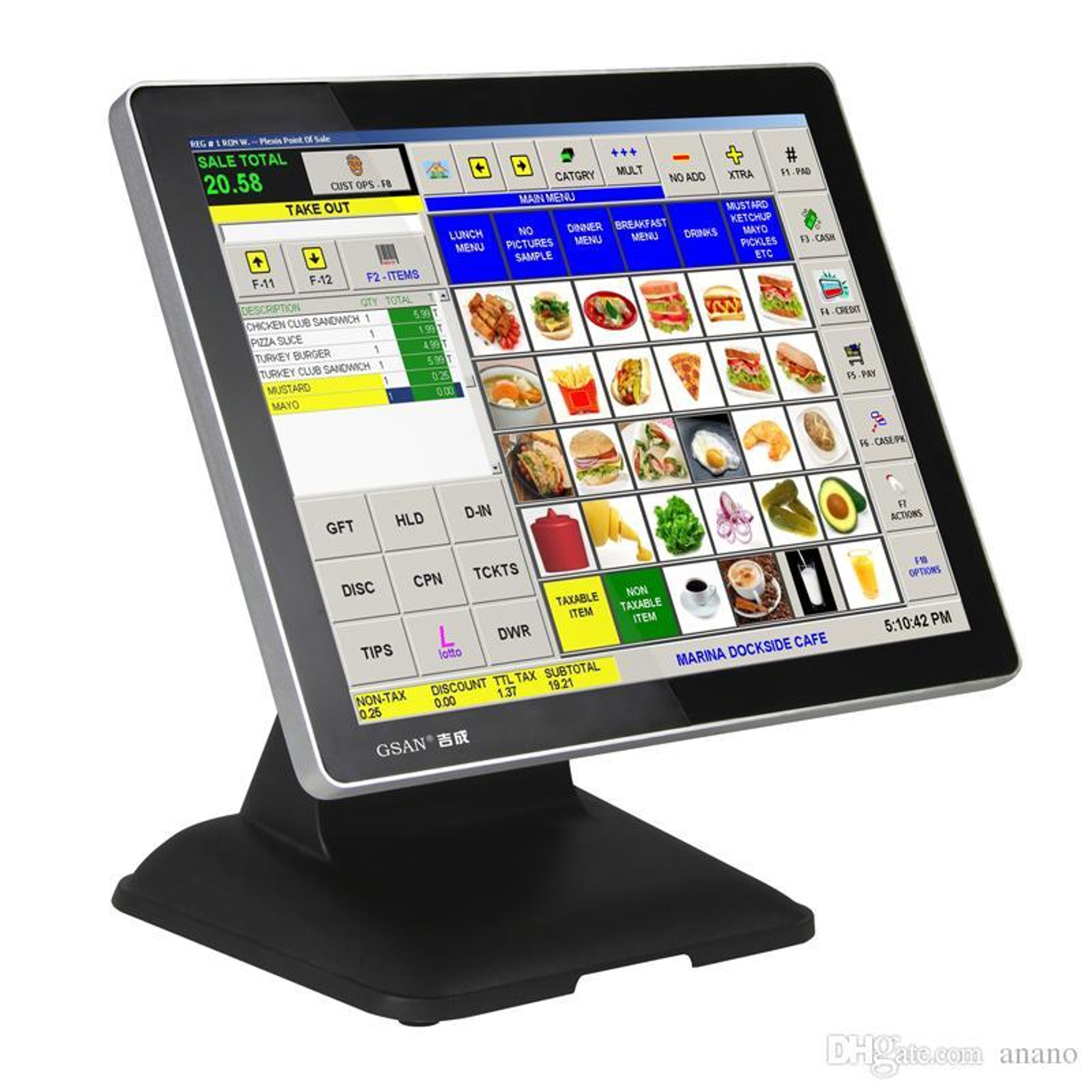
- Retail & Hospitality: Faster checkouts at places like Bhat-Bhateni or restaurants.
- Inventory Integration: Each touch automatically updates stock levels in the backend system.
Industrial & Field Use
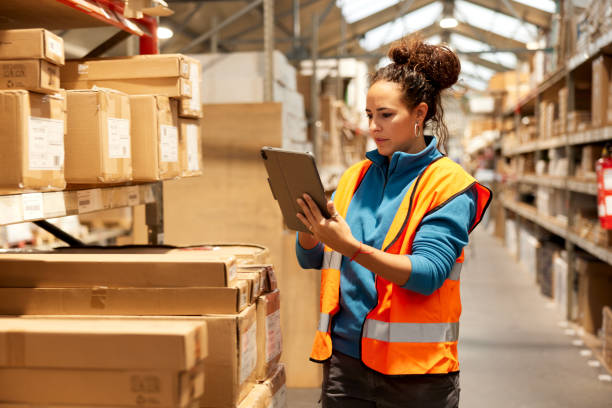
- Logistics: Delivery drivers (e.g., Pathao, Foodmandu) use smartphones to confirm deliveries and capture signatures.
- Warehousing: Staff use rugged tablets to scan barcodes and update inventory locations in real-time.
Touchscreens in Corporate Functions
Beyond the factory floor, touchscreens streamline internal processes.
Human Resources 🤝
- Time Tracking: Kiosks for employees to clock in and out.
- Onboarding: New hires use tablets to fill out forms and sign documents digitally.
- Training: Interactive learning modules on shared tablets or information kiosks.
Finance & Banking 💰
- ATMs: The most common example of a public-facing financial touchscreen.
- Client Services: Bank staff use tablets to open accounts or process loan applications with customers.
- Meeting Rooms: Interactive whiteboards for collaborative budgeting sessions.
Comparison: Keyboard vs. Touchscreen
The right choice depends on the specific business task.
| Attribute | Keyboard | Touchscreen |
|---|---|---|
| Speed (Bulk Data Entry) | ⚡ High | 🐢 Low |
| Accuracy (Text/Numbers) | 🎯 High (Tactile Feedback) | ⚠️ Moderate (Prone to errors) |
| Mobility & Portability | ❌ Low (Requires a surface) | ✅ High (Integrated) |
| Durability (Industrial) | ⚠️ Moderate (Vulnerable to dust/water) | ✅ High (Sealed, ruggedized models) |
| Ease of Use (Initial) | 📚 Learned Skill | 👍 Highly Intuitive |
Stylus & Digital Pens: Precision Touch
A stylus is a pen-like tool used with touchscreens, offering greater precision than a fingertip.
Key Business Use Cases:
- ✍️ E-Signatures: Capturing legally binding signatures on contracts, loan documents, and delivery confirmations.
- 🔍 Design & Annotation: Architects marking up blueprints, managers adding notes to a presentation, or quality control inspectors highlighting issues on a photo.
- 💼 Note-Taking: Executives taking handwritten notes during a meeting that are instantly digitized and searchable.
🇳🇵 Application in the Nepali Business Landscape
Let's see how these devices are used by leading Nepali companies:
eSewa / Khalti (FinTech)
Users interact via smartphone touchscreens to make payments. Behind the scenes, finance and support teams use keyboards and mice for accounting, customer service, and fraud analysis.
CG Foods / Wai Wai (Manufacturing)
Factory floor supervisors use industrial touch panels to monitor production lines. Supply chain managers in the office rely on keyboards for data entry into their ERP system to manage raw materials and distribution.
Daraz (E-commerce)
Warehouse staff use handheld devices with touchscreens and integrated scanners. Delivery agents use their smartphone touchscreens. Marketing and analytics teams use keyboards to write code and analyze sales data.
Hybrid Devices: The Best of Both Worlds?
Devices like the Microsoft Surface or convertible laptops combine a touchscreen with a detachable or foldable keyboard.
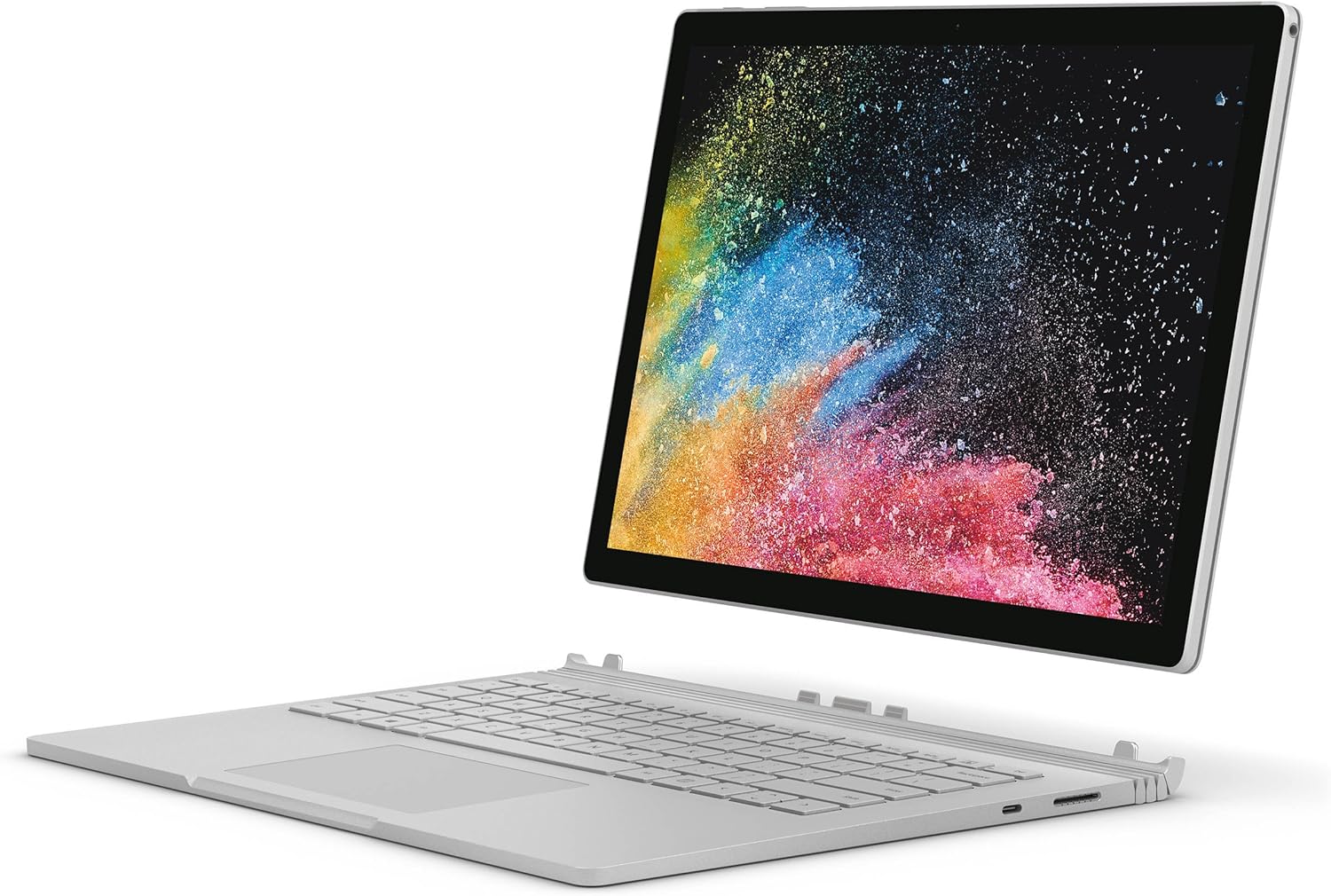
- Laptop Mode (Keyboard): Ideal for a sales manager writing a quarterly report or an accountant preparing tax documents.
- Tablet Mode (Touch/Stylus): Perfect for the same sales manager presenting to a client or an engineer reviewing plans on-site.
Summary: Key Takeaways for Managers
- 🎯 The choice of input device is a strategic business decision, not just a technical one. It directly impacts employee efficiency and data accuracy.
- 🎯 Match the tool to the task: Keyboards for high-volume, precision data entry (Finance, HR Admin). Touchscreens for mobile, intuitive, selection-based tasks (Sales, Field Service, Retail).
- 🎯 Modern businesses thrive on a hybrid ecosystem. Different roles require different tools to be effective.
- 🎯 Understanding the capabilities and limitations of these devices allows you to optimize workflows and processes across every single business function.
Thank You!
Any Questions?
Next Topic: Input Devices: Voice and Movement Control